Installing Jenkins on EC2 Instance: A Step-by-Step Guide 2025 | Setting Up Jenkins on AWS EC2: A Quick Installation Guide 2025 | Jenkins install in Amazon Linux 2025 | Install Jenkins on AWS
In this article you will learn how to install jenkins on ec2 machine in quickest way possible.
Along with that you will learn to create a jenkins job which has github webhook enabled so that once the commit push to github the job will triggered automatically.
Step 1: Launching an EC2 instance
Here we launching ec2 instance which has user data which automatically installed the git and jenkins inside the ec2 instance. Here are the steps:
- After signing to aws console, Go to ec2 dashboard.
- In the resources section, select instances(running).
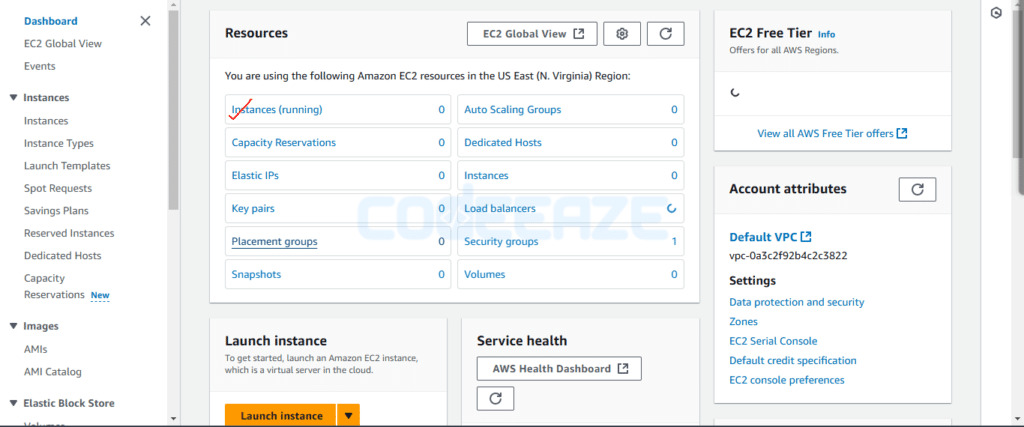
3. Now select launch instances.

4. Enter server name, select ami (amazon linux), and instance type(t2.micro).
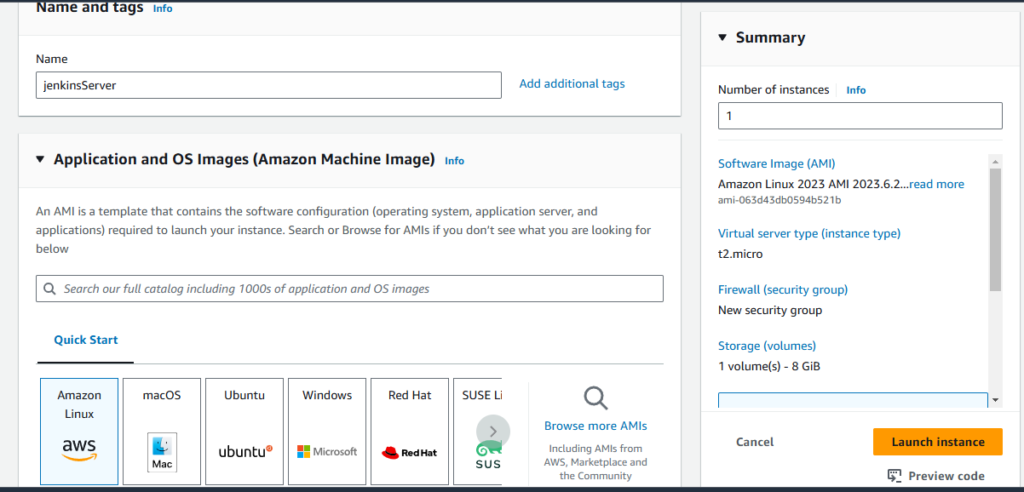
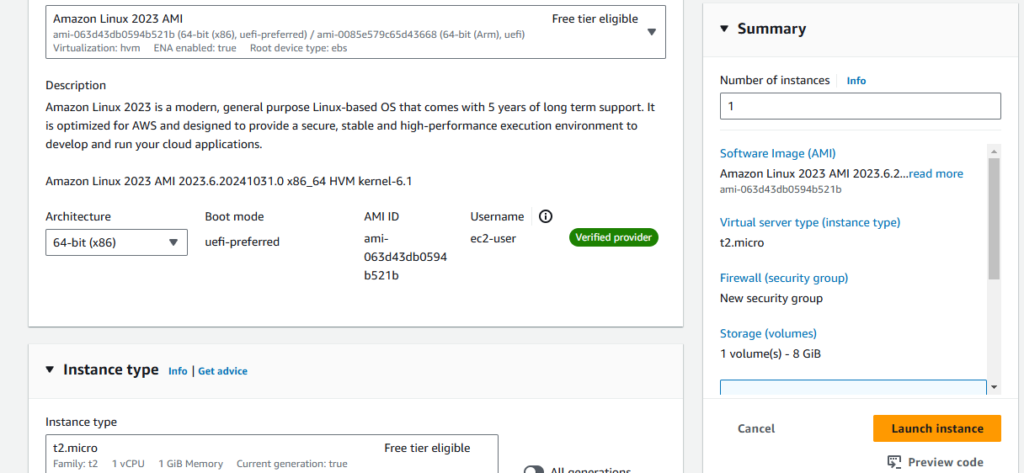
5. Create a key pair to securely connect to our ec2 instance.
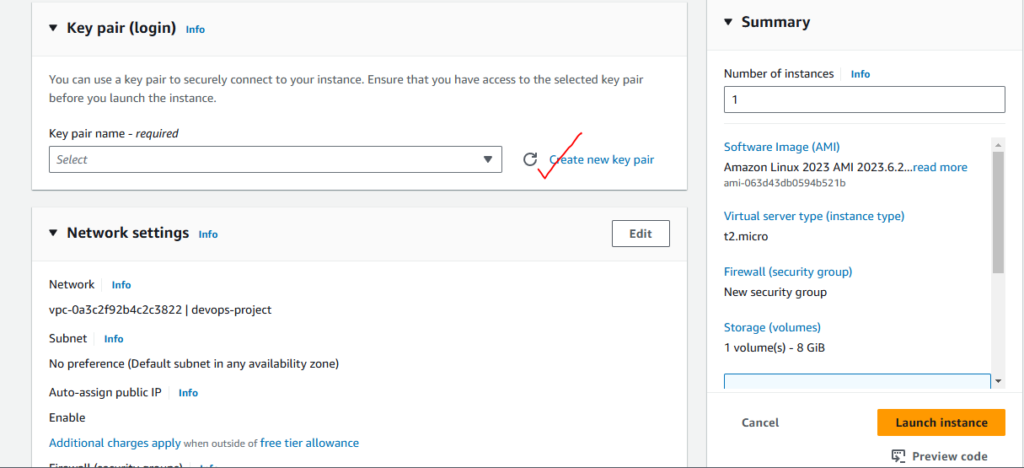
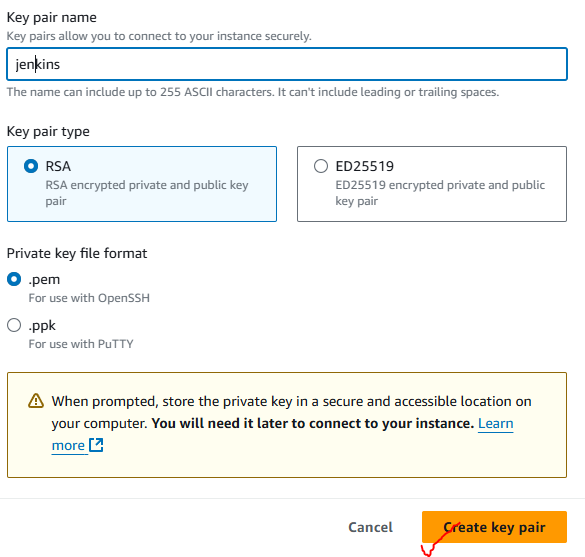
6. Now select Advanced details and search for the user data option.
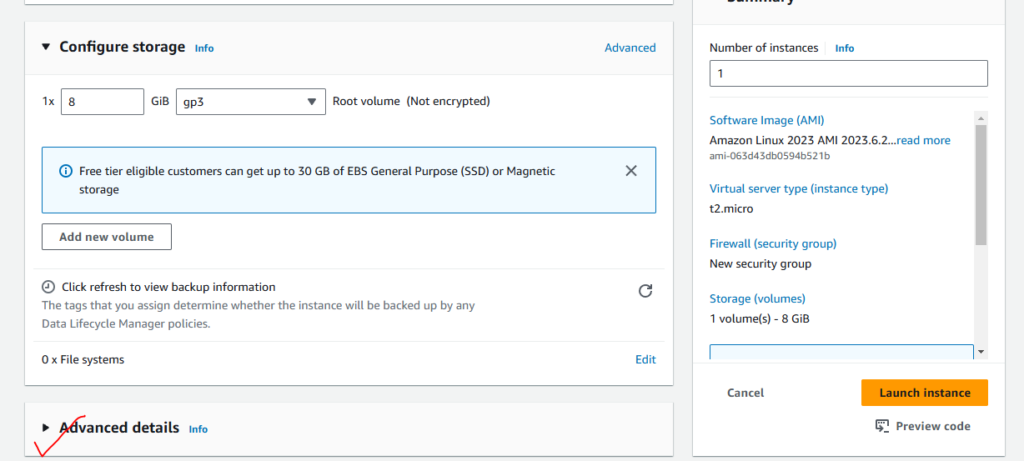
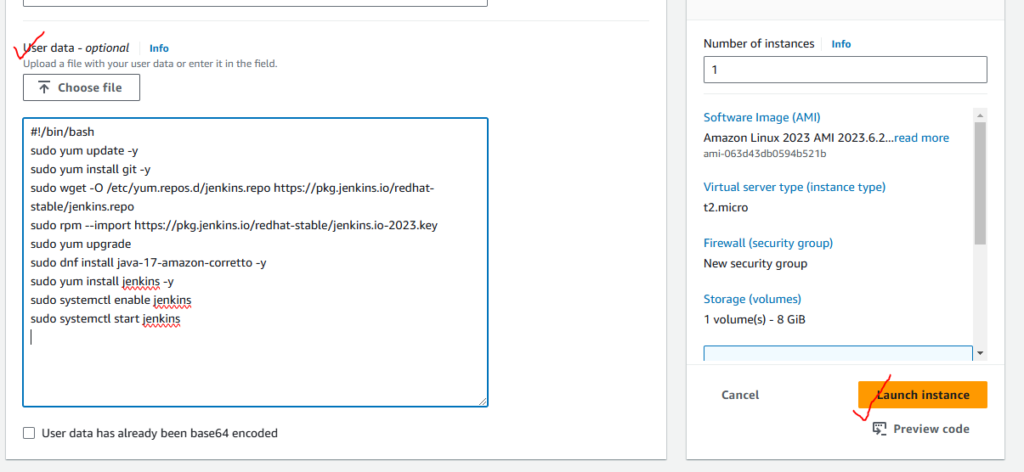
7. In the user data option, write the commands that will install git and Jenkins inside the server when the instance is launched, so we don’t have to manually enter the commands.
#!/bin/bash
sudo yum update -y
sudo yum install git -y
sudo wget -O /etc/yum.repos.d/jenkins.repo https://pkg.jenkins.io/redhat-stable/jenkins.repo
sudo rpm --import https://pkg.jenkins.io/redhat-stable/jenkins.io-2023.key
sudo yum upgrade
sudo dnf install java-17-amazon-corretto -y
sudo yum install jenkins -y
sudo systemctl enable jenkins
sudo systemctl start jenkins
https://www.jenkins.io/doc/book/installing/linux/

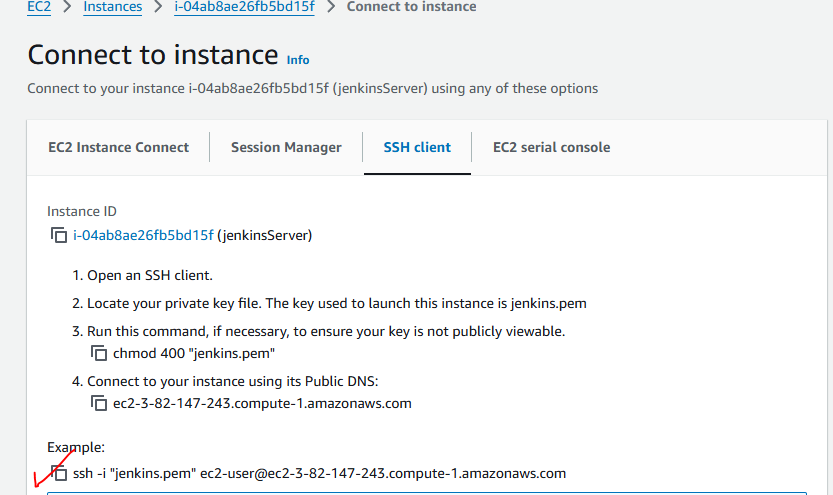
8. Once the instance is launched successfully, we need to ssh into it. Copy the example command and run the command in the cmd in the directory where you download the pem file (key pair).
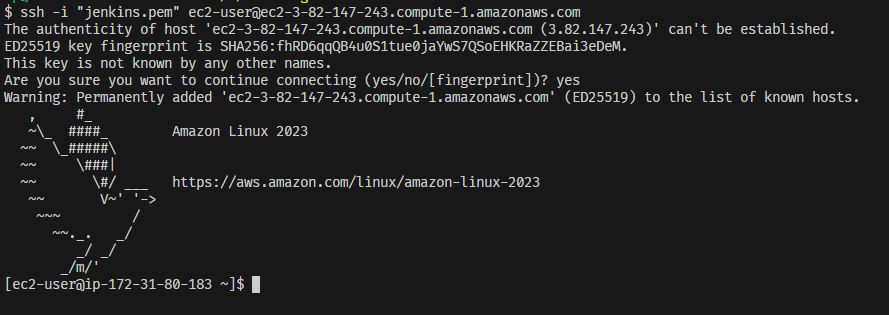
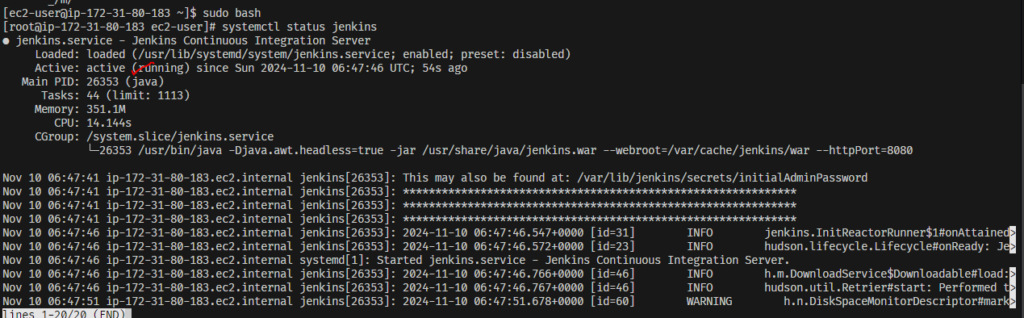
9. Now run the sudo bash to run as admin then check if jenkins is running properly or not by usiing this command:
systemctl status jenkins
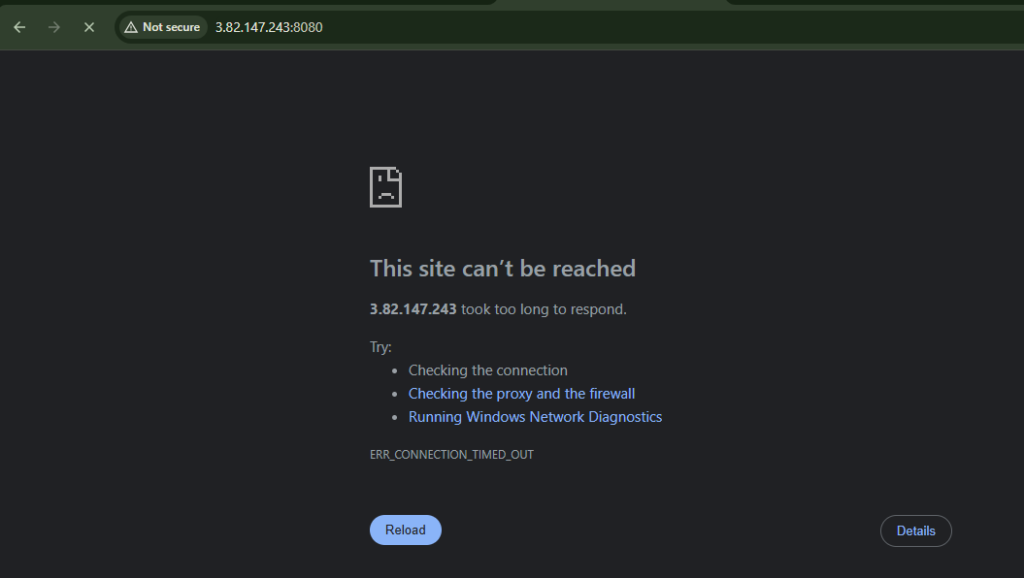
10. Now try to run the Jenkins application on the browser by running ip:8080.
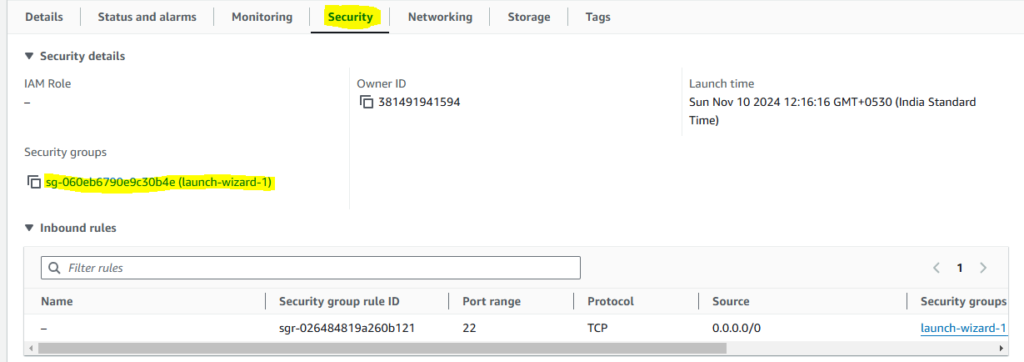
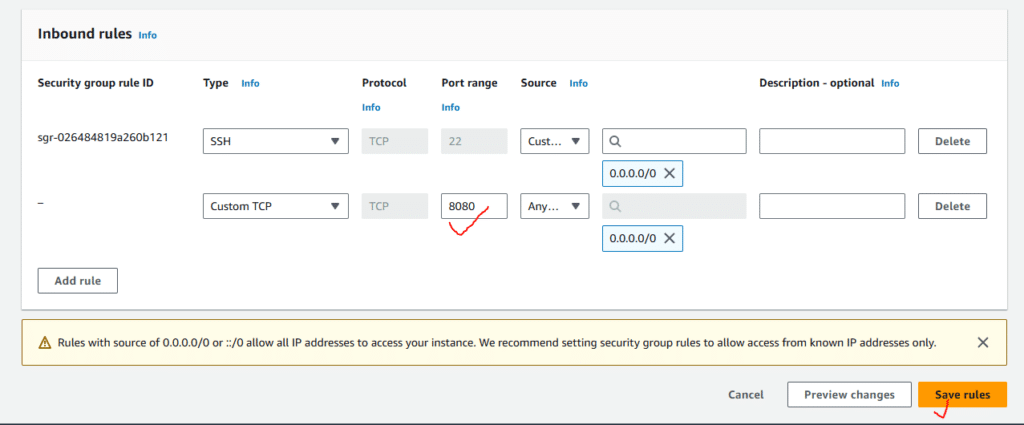
The site can’t be reached because the security group is not permitted to view the 8080 port of that server publically.
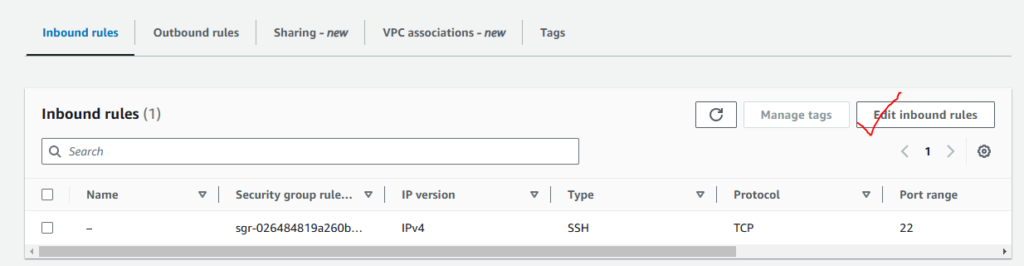
We have to add inbound rules that allow this
Step 2: Configuring Jenkins
Now after installation, need to setup jenkins by unlocking jenkins using administrator password:
cat /var/lib/jenkins/secrets/initialAdminPassword
note: make sure you run the command sudo bash firstly
otherwise for this cat command u will get permission denied
then do this:
sudo cat /var/lib/jenkins/secrets/initialAdminPassword
it will give you the password.
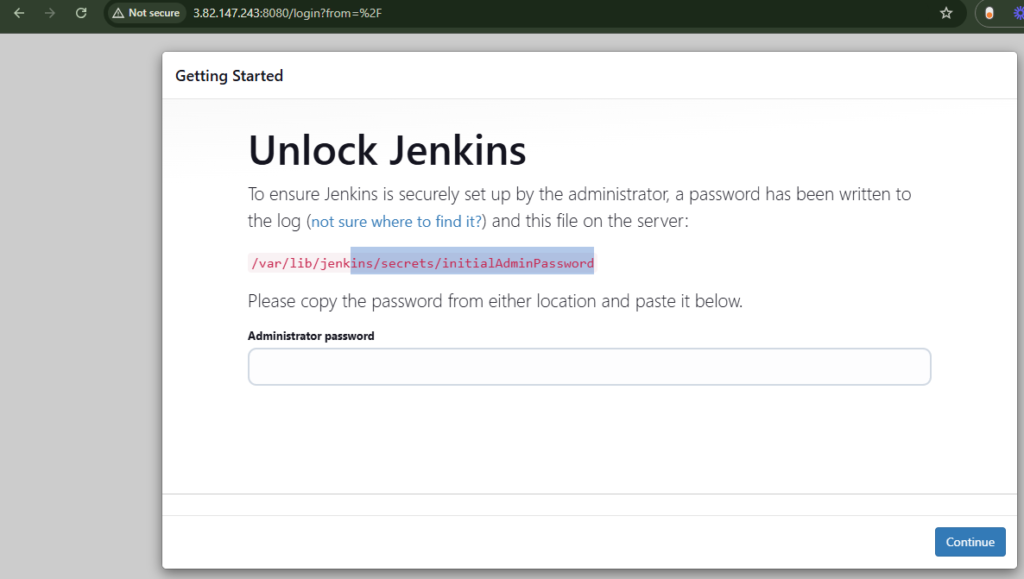

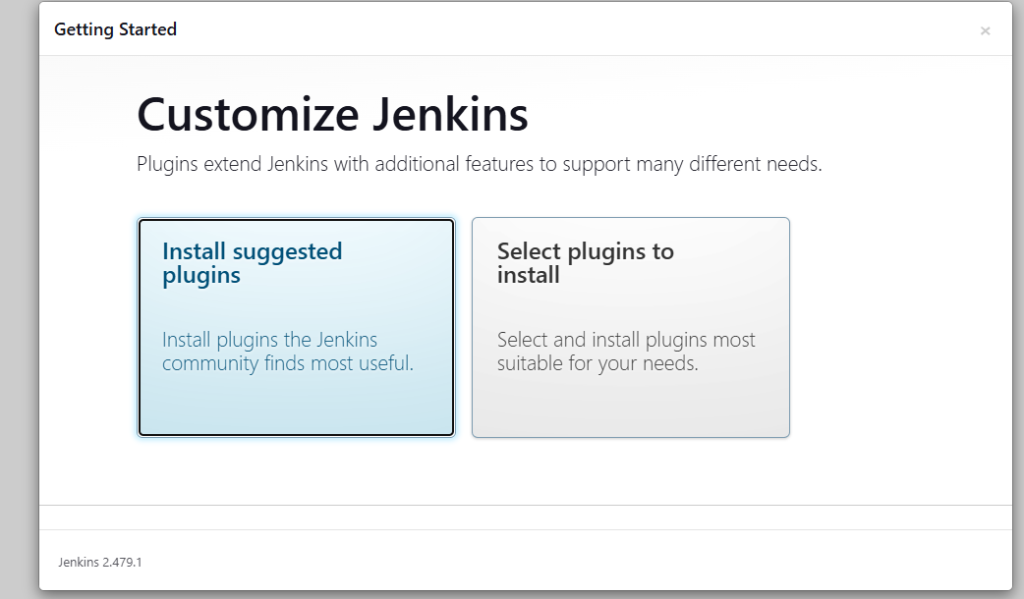
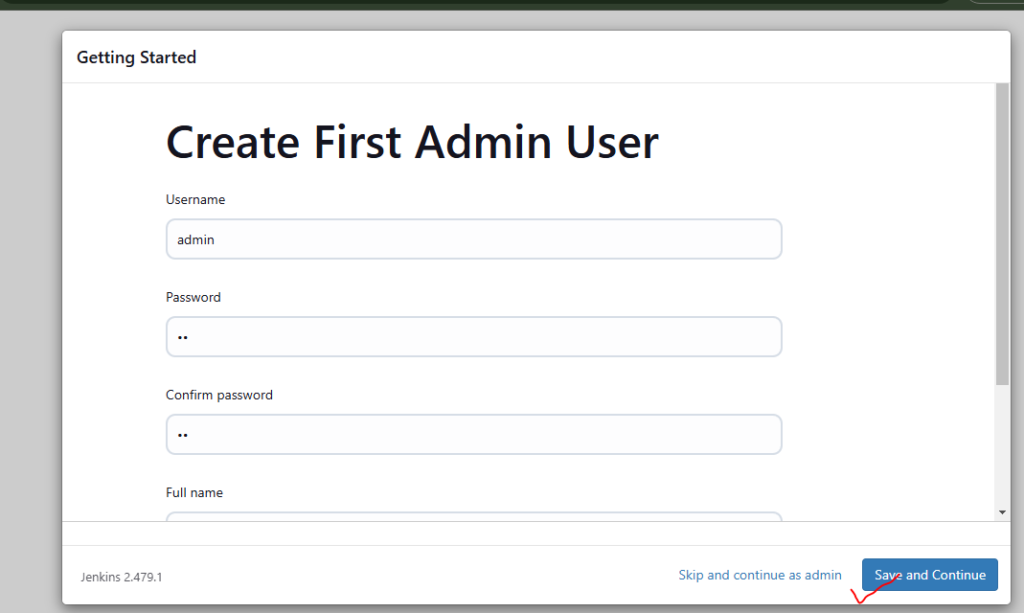
Create first admin user by adding username, password, fullname, and email. After that just continue and the jenkins configuration is done.
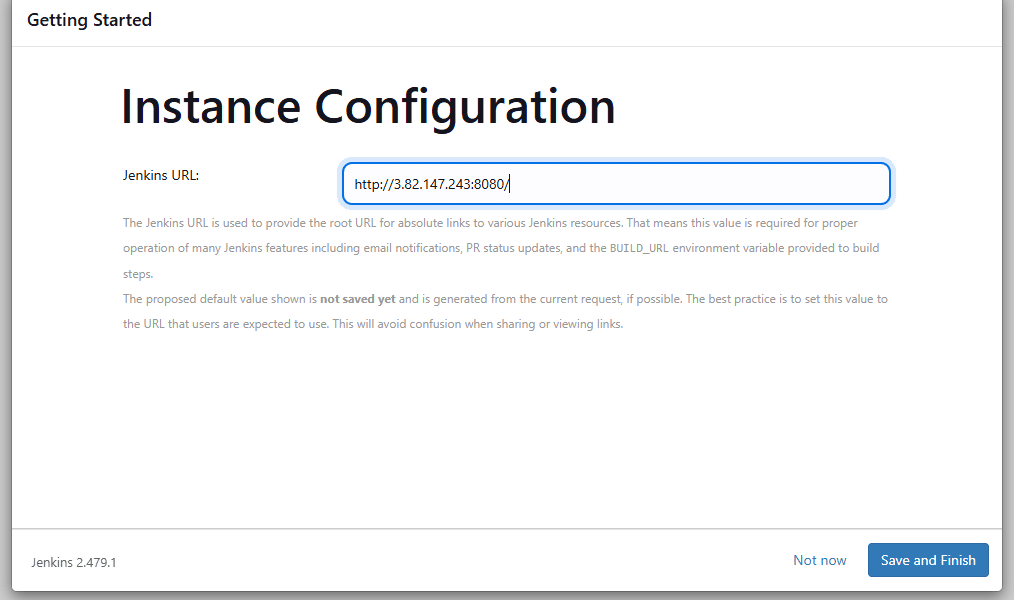
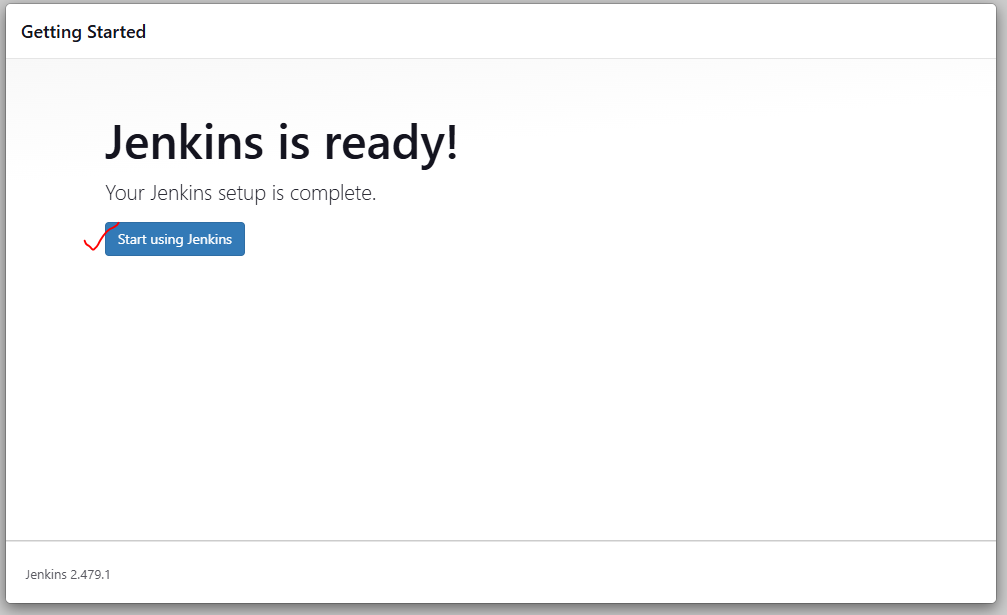
Here you will see the jenkins dashboard.
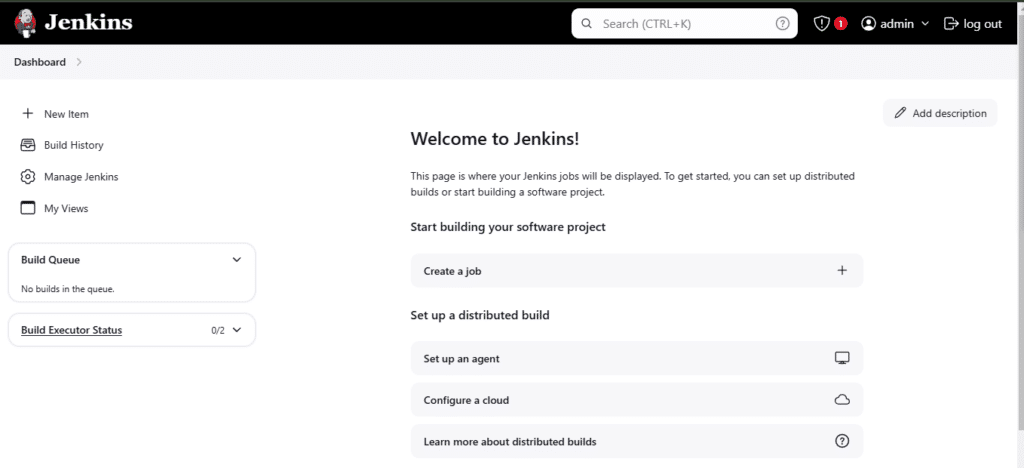
Install Jenkins as docker container using UserData
#!/bin/bash
# 1. Update and Install Docker
yum update -y
yum install -y docker
systemctl start docker
systemctl enable docker
usermod -aG docker ec2-user

# 2. Create a directory for Jenkins Data on the Host
mkdir -p /home/ec2-user/jenkins_data

# 3. Set Permissions (CRITICAL STEP)
# Jenkins inside the container runs as user ID 1000.
# The host folder must allow this ID to write to it.
chown -R 1000:1000 /home/ec2-user/jenkins_data

# 4. Run Jenkins Container
# We map host port 8080 to container 8080
# We map host folder /home/ec2-user/jenkins_data to container /var/jenkins_home
docker run -d \
  --name jenkins \
  --restart on-failure \
  -p 8080:8080 \
  -p 50000:50000 \
  -v /home/ec2-user/jenkins_data:/var/jenkins_home \
  jenkins/jenkins:lts
then get the initial password:
docker exec jenkins cat /var/jenkins_home/secrets/initialAdminPassword
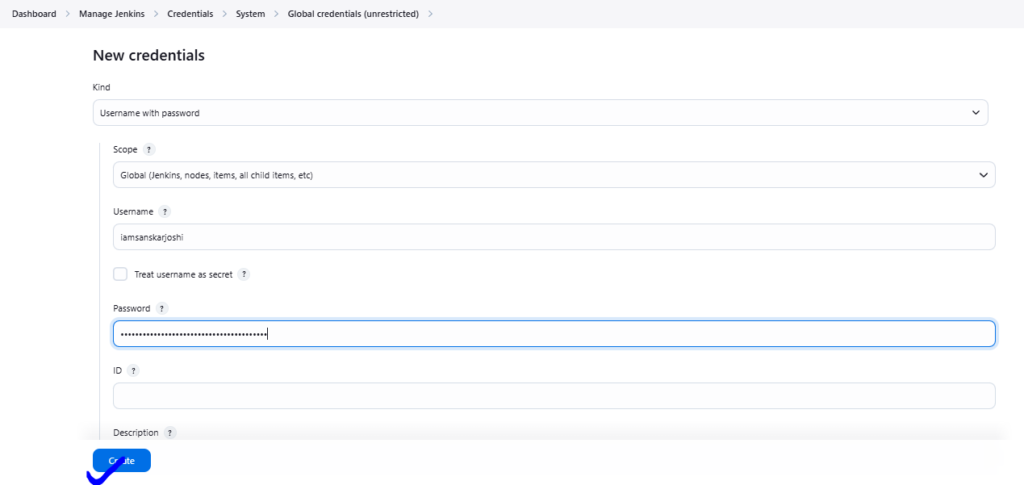
Step 3: How to use Github Personal Access Token in Jenkins
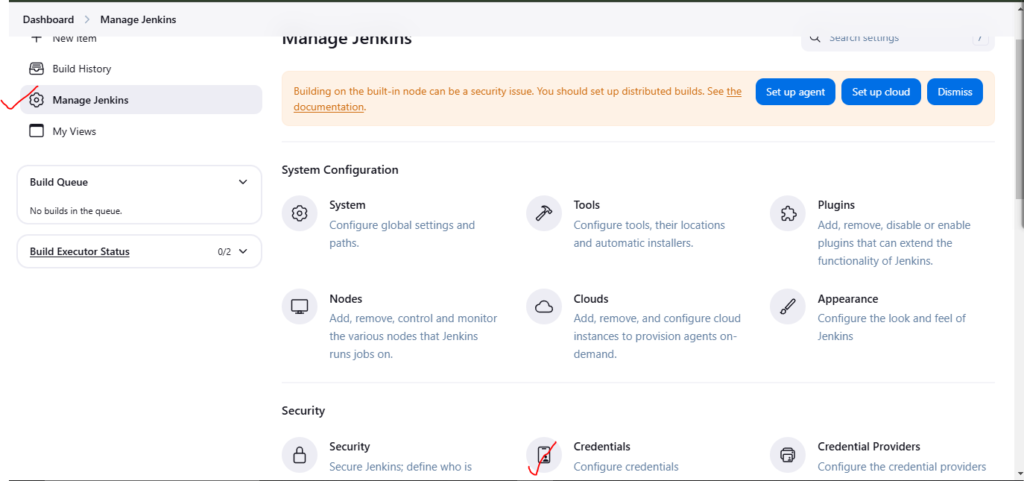
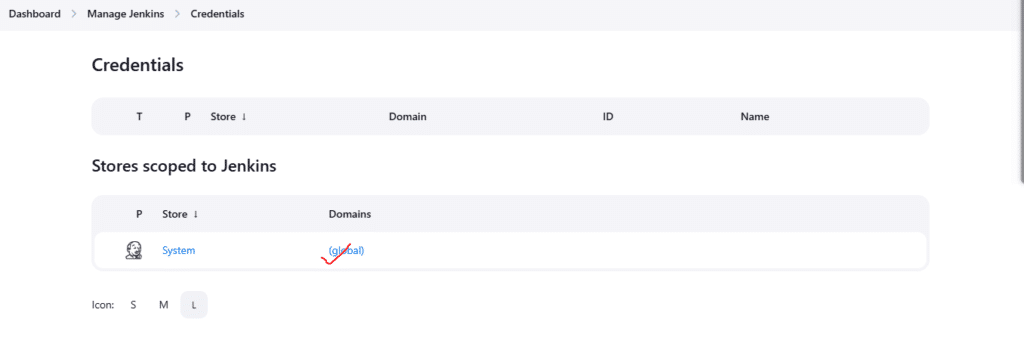
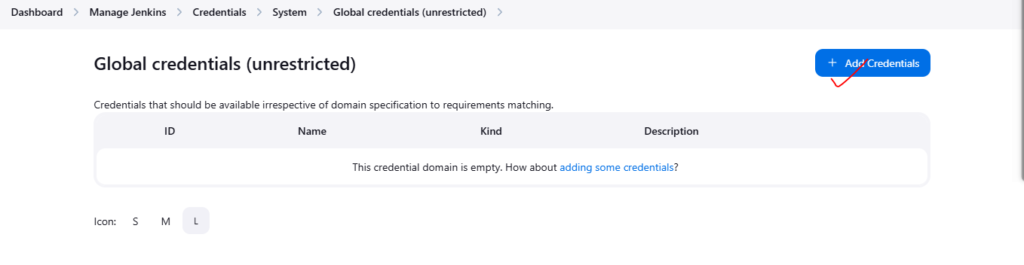
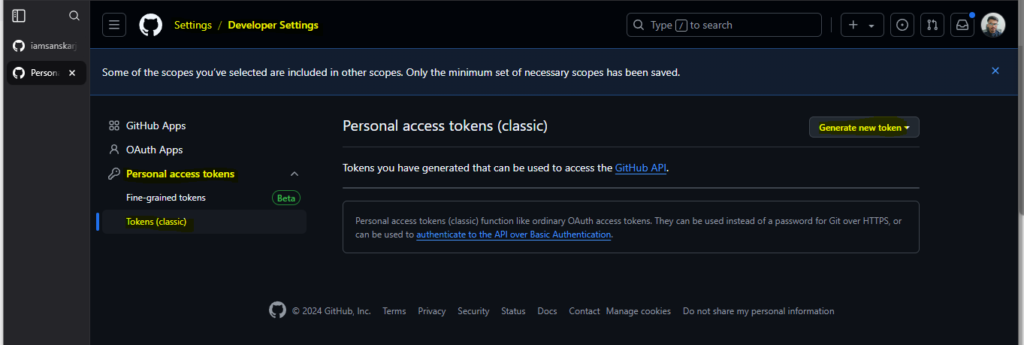
- Go to GitHub.com -> Click your profile photo -> Settings
- Scroll down to Developer settings -> Personal access tokens -> Tokens (classic).
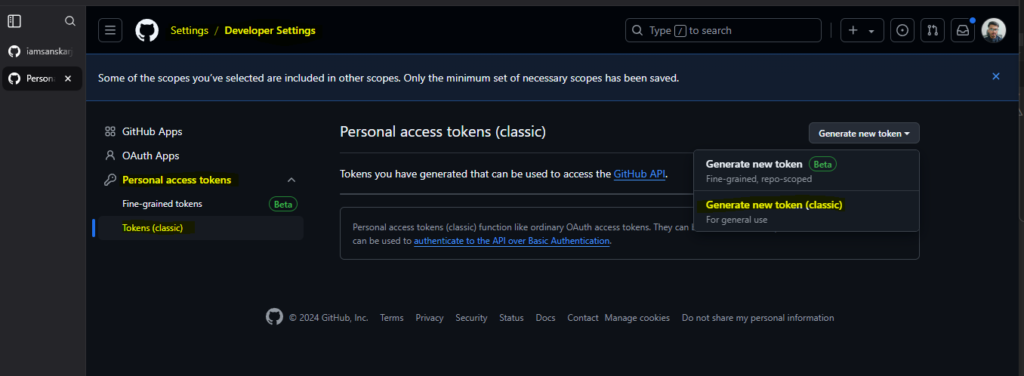
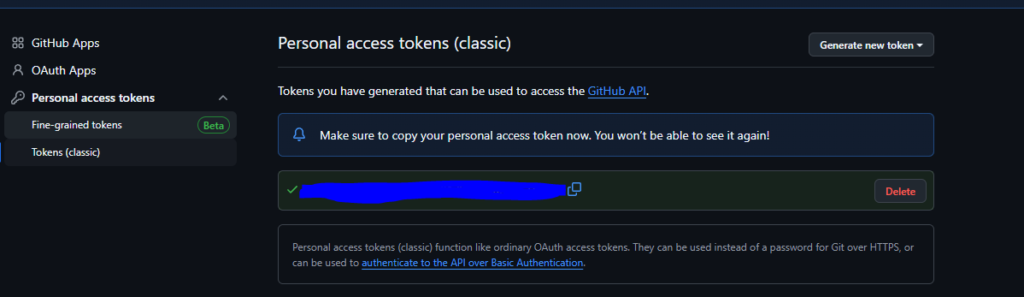
- Click Generate new token (classic).
- Scopes: You must check these boxes:
- repo (Full control of private repositories)
- read:org (Read organization data)
- admin:org_hook (To let Jenkins create webhooks automatically)
- user:email (Recommended)
Step 4: Test a Jenkins pipeline of sample node application
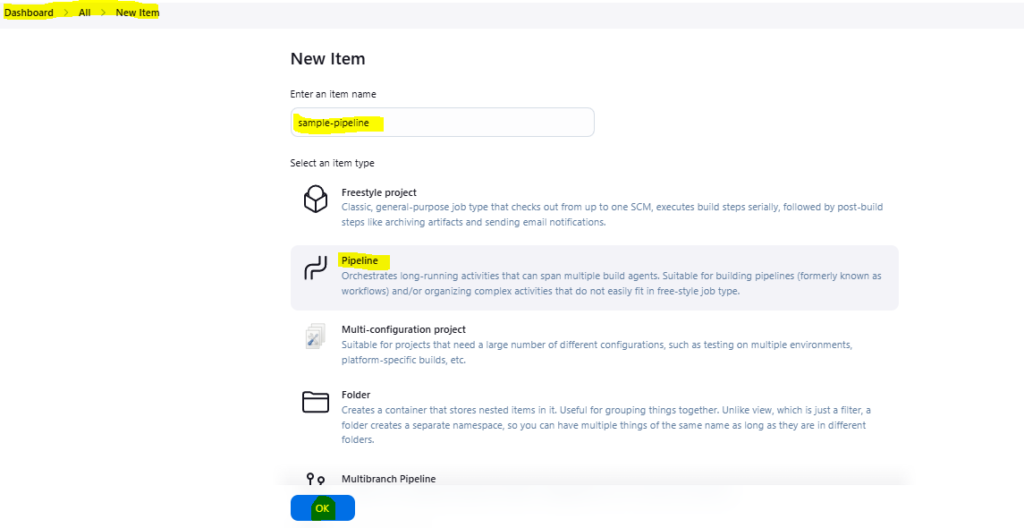
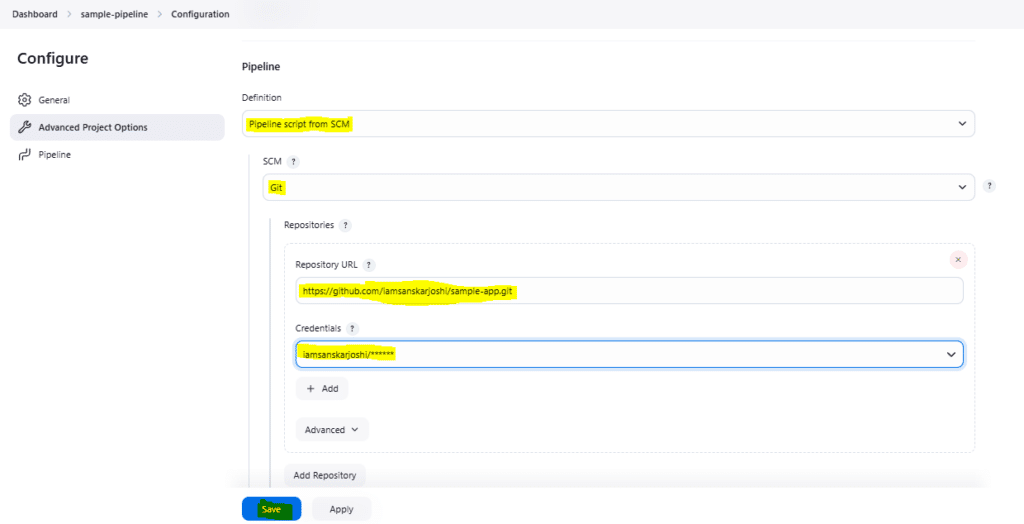
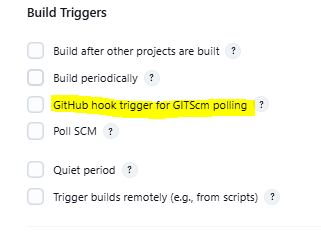
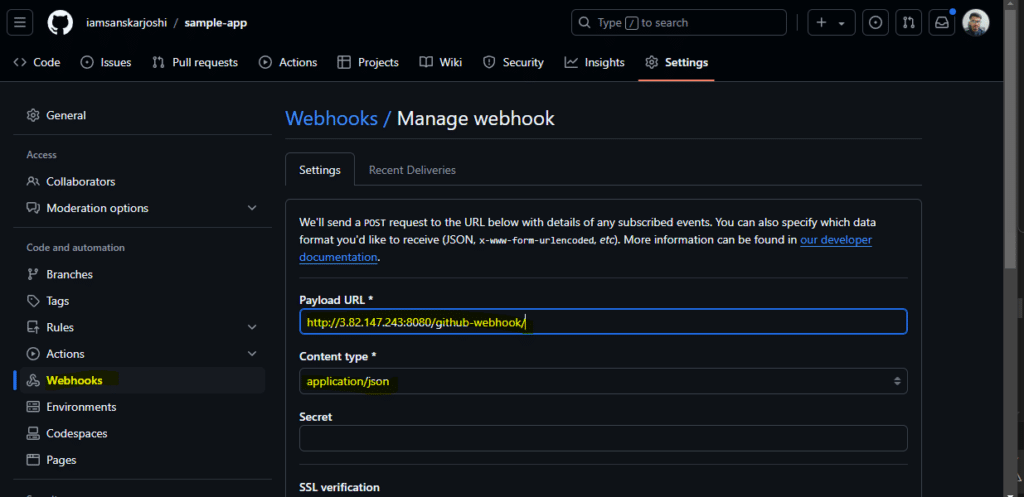
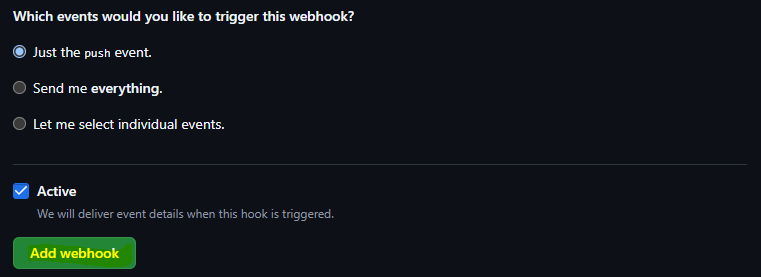
How to configure Webhook in GitHub and Jenkins for automatic trigger with CICD pipeline?
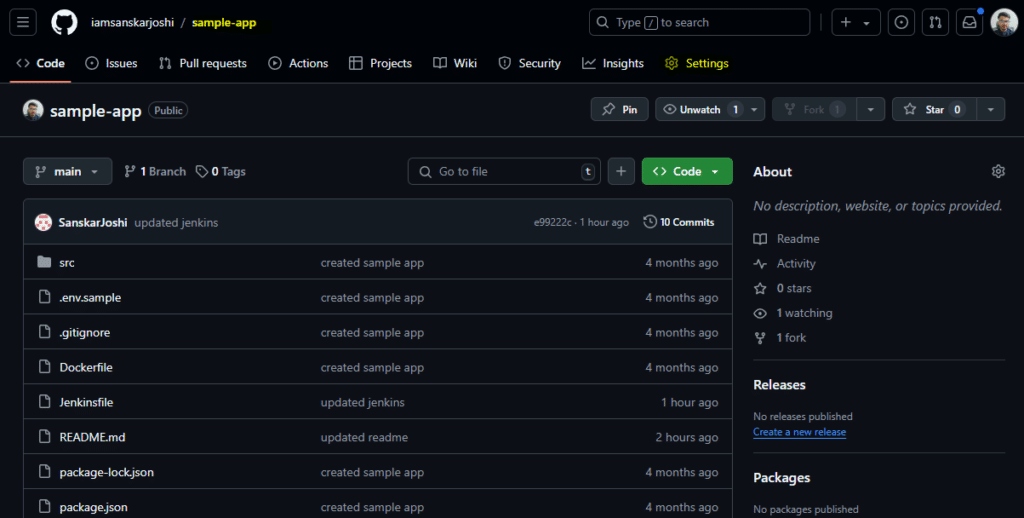
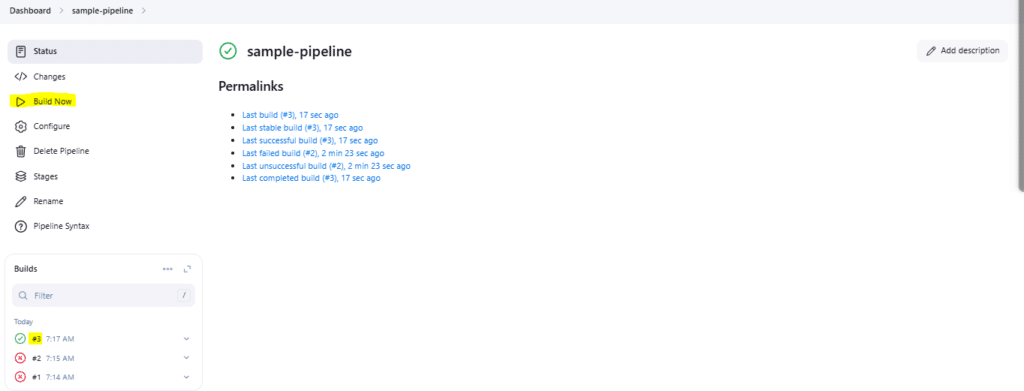
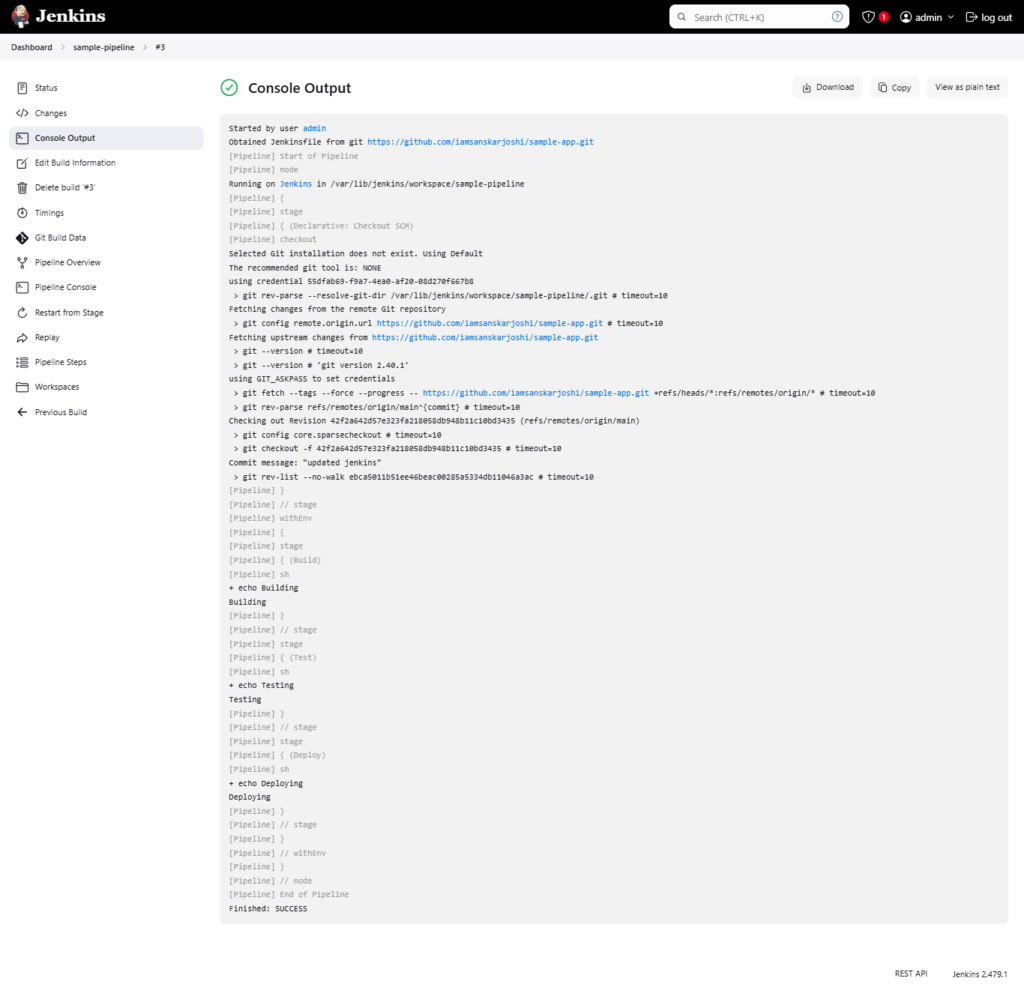
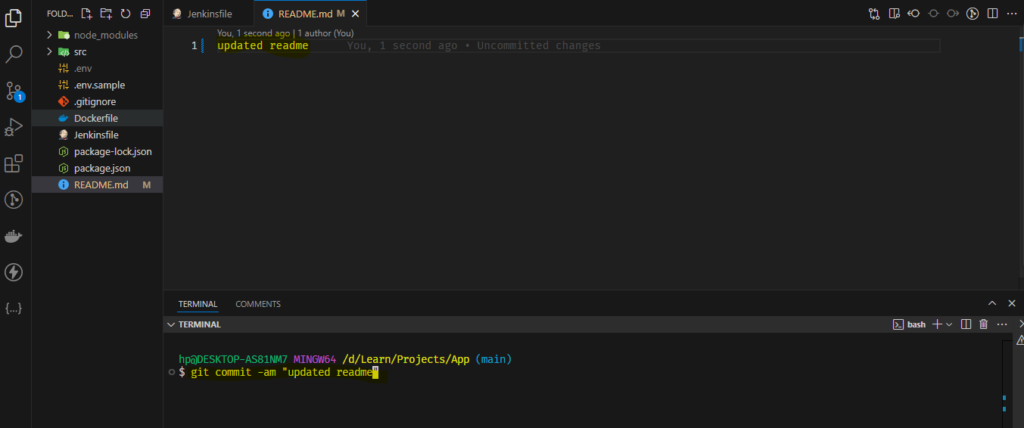
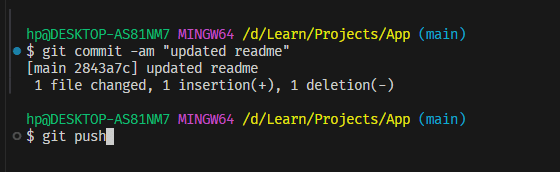
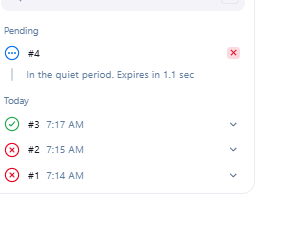
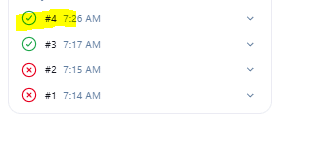
Updating the code to trigger the jenkins job using webhook
1 thought on “Installing Jenkins on EC2 Instance 2025: A Step-by-Step Guide”