
Kubernetes autoscaling used to be a waiting game. Your cluster notices a Pending pod. It nudges an AWS Auto Scaling Group. The ASG decides to launch an EC2 instance. The instance bootstraps. The node registers with EKS. Your pod finally starts — two to five minutes later.
In a world where engineering teams ship continuously and traffic spikes unpredictably, that delay is a genuine bottleneck.
Enter Karpenter — an open-source, cloud-native node provisioner built by AWS that bypasses Auto Scaling Groups entirely, talks directly to the EC2 Fleet API, and provisions exactly the compute your pods need in under 60 seconds. It also runs a continuous consolidation engine in the background, quietly merging underutilized nodes and terminating idle EC2 instances to protect your cloud budget.
In this guide, you will get a complete, production-ready deployment blueprint for Karpenter v1+ on Amazon EKS — including every IAM role, every tag, every Helm flag, and the real-world debugging steps that catch most teams off guard.
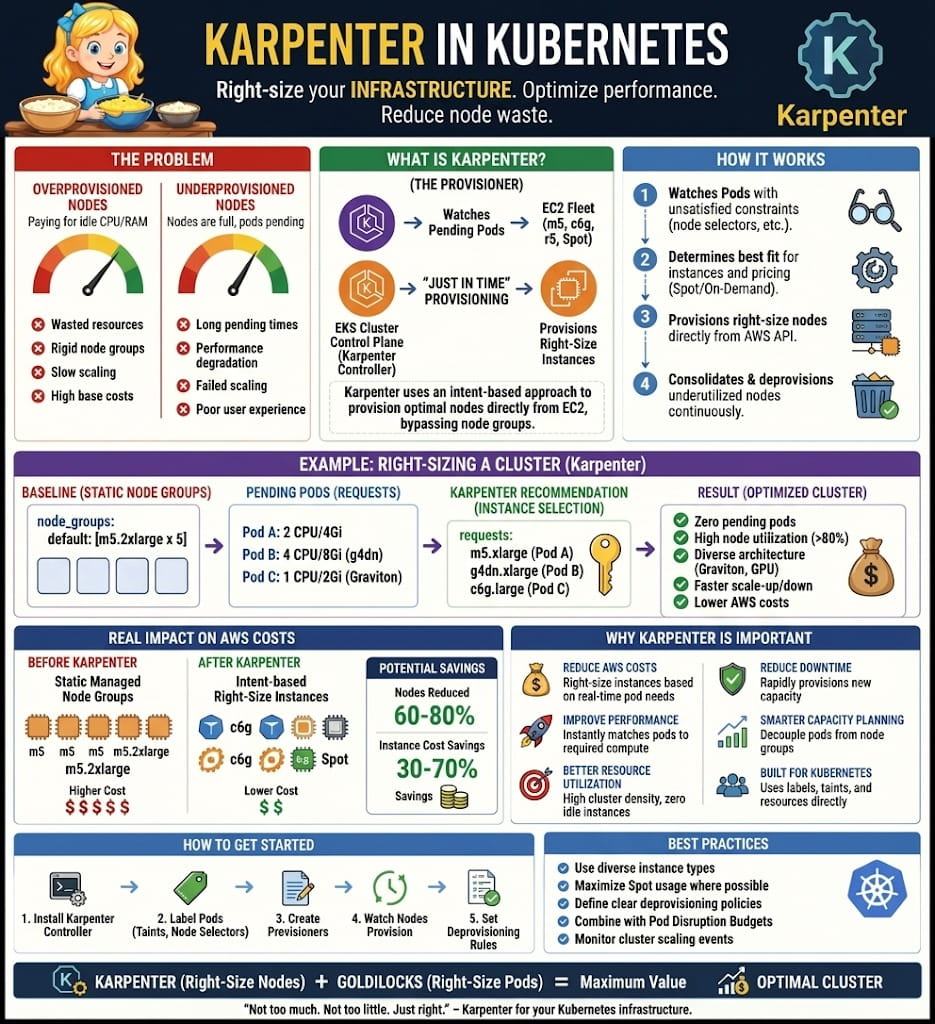
⚙️ How Karpenter Works Under the Hood
Karpenter uses a group-less, just-in-time provisioning model — a fundamentally different philosophy from the node group / ASG approach that has dominated Kubernetes autoscaling for years. Here is the core loop:
1. The Watcher
Karpenter continuously watches the Kubernetes API server for pods with a Pending status caused by the Unschedulable condition — meaning no existing node has the resources, topology, or labels to run them.
2. The Evaluator
The moment a pending pod is detected, Karpenter reads its full scheduling context: CPU and memory requests, node selectors, tolerations, affinity rules, and availability zone topology constraints. It builds a precise model of what infrastructure that pod actually needs.
3. The Provisioner
Instead of choosing from a fixed, predefined pool of machine types, Karpenter queries the entire EC2 instance catalog and selects the most cost-effective, structurally sound match. It can mix architectures (x86 and ARM64), purchase types (On-Demand and Spot), and instance families in a single cluster — all controlled declaratively via a NodePool manifest.
4. The Consolidation Engine
Karpenter does not just scale up — it scales smart. Its built-in consolidation engine continuously monitors for underutilized nodes. When it finds them, it safely reschedules the running pods onto fewer machines and terminates the now-empty EC2 instances. The result is a cluster that is always right-sized, not just right-scaled.
Key difference from Cluster Autoscaler: Cluster Autoscaler manages groups of predefined node types. Karpenter manages individual nodes of any type. This means faster scaling, lower cost, and far less configuration overhead.
✅ Prerequisites
Before starting, make sure you have the following ready:
- An operational Amazon EKS cluster (v1.30+) with at least one small managed node group to host system pods (Karpenter itself needs somewhere to run before it can create new nodes).
- AWS CLI configured with permissions to manage IAM, EC2, and EKS resources.
- kubectl connected to your cluster (
kubectl get nodesreturns healthy output). - Helm v3.8+ installed locally (required for OCI registry support).
- Your AWS Account ID, EKS cluster name, EKS API endpoint, VPC subnet IDs, and node security group ID on hand.
🔐 Step 1 — Create the IAM Roles
Karpenter needs two separate IAM roles with clearly separated responsibilities:
- Controller Role — assumed by the Karpenter pod itself (via EKS Pod Identity) to make EC2 Fleet API calls and provision infrastructure.
- Node Role — assumed by every EC2 instance that Karpenter launches, giving each new worker node the permissions it needs to join EKS and pull container images.
1a. Create the Controller Trust Policy
Save the following as controller-trust.json on your local machine:
{
    "Version": "2012-10-17",
    "Statement": [
        {
            "Effect": "Allow",
            "Principal": {
                "Service": "pods.eks.amazonaws.com"
            },
            "Action": [
                "sts:AssumeRole",
                "sts:TagSession"
            ]
        }
    ]
}
Note the pods.eks.amazonaws.com principal — this is the EKS Pod Identity service, the modern, preferred alternative to IRSA (IAM Roles for Service Accounts). It is simpler to manage and does not require OIDC provider configuration.
1b. Create the Controller IAM Role and Attach the Permissions Policy
Save your Karpenter permissions policy as karpenter-policy.json (you can generate one from the official Karpenter CloudFormation reference), then run:
# Create the IAM Role for the Karpenter controller pod
aws iam create-role \
  --role-name KarpenterControllerRole-Dev \
  --assume-role-policy-document file://controller-trust.json

# Create a dedicated customer-managed permissions policy
aws iam create-policy \
  --policy-name EKSKarpenterControllerPolicy-Dev \
  --policy-document file://karpenter-policy.json

# Attach the policy to the controller role
aws iam attach-role-policy \
  --role-name KarpenterControllerRole-Dev \
  --policy-arn arn:aws:iam::<YOUR_ACCOUNT_ID>:policy/EKSKarpenterControllerPolicy-Dev
1c. Create the Node IAM Role
Every EC2 instance launched by Karpenter will assume this role. It needs four standard AWS-managed policies to function as a healthy EKS worker node:
# Create the role with an EC2 trust policy
aws iam create-role \
  --role-name KarpenterNodeRole-Dev \
  --assume-role-policy-document '{
    "Version": "2012-10-17",
    "Statement": [{
      "Effect": "Allow",
      "Principal": {"Service": "ec2.amazonaws.com"},
      "Action": "sts:AssumeRole"
    }]
  }'

# Attach the four required worker node policies
aws iam attach-role-policy --role-name KarpenterNodeRole-Dev \
  --policy-arn arn:aws:iam::aws:policy/AmazonEKSWorkerNodePolicy

aws iam attach-role-policy --role-name KarpenterNodeRole-Dev \
  --policy-arn arn:aws:iam::aws:policy/AmazonEKS_CNI_Policy

aws iam attach-role-policy --role-name KarpenterNodeRole-Dev \
  --policy-arn arn:aws:iam::aws:policy/AmazonEC2ContainerRegistryReadOnly

aws iam attach-role-policy --role-name KarpenterNodeRole-Dev \
  --policy-arn arn:aws:iam::aws:policy/AmazonSSMManagedInstanceCore
Why AmazonSSMManagedInstanceCore? This enables AWS Systems Manager on every Karpenter-provisioned node, giving you SSH-free shell access for debugging — highly recommended for production environments.
🏷️ Step 2 — Tag Your VPC Subnets & Security Groups
This is one of the most commonly missed steps and the most common cause of Karpenter failing to provision any nodes at all.
Karpenter does not look up your VPC resources by ID. It uses tag-based discovery. You must apply the karpenter.sh/discovery tag to both your private subnets and your cluster’s node security group so Karpenter can find them dynamically.
# Tag your private VPC subnets (add all subnet IDs used by your node groups)
aws ec2 create-tags \
  --resources subnet-xxxxxx subnet-yyyyyy subnet-zzzzzz \
  --tags Key=karpenter.sh/discovery,Value=dev-cluster

# Tag the security group attached to your existing EKS node group
aws ec2 create-tags \
  --resources sg-aabbccdd \
  --tags Key=karpenter.sh/discovery,Value=dev-cluster
Replace the resource IDs above with your actual subnet and security group IDs. The tag value (dev-cluster) must exactly match the cluster name you will set in Karpenter’s Helm values and in your EC2NodeClass manifest.
Finding your security group ID: Go to the EC2 Console → Security Groups, or run
aws eks describe-cluster --name dev-cluster --query "cluster.resourcesVpcConfig.clusterSecurityGroupId".
🔑 Step 3 — Register the Node Role via EKS Access Entry
Modern EKS clusters (v1.29+) use EKS Access Entries to authorize IAM principals within the cluster — replacing the older, manual aws-auth ConfigMap approach. Your newly created node role needs an access entry so that Karpenter-provisioned instances can authenticate with the Kubernetes API when they join.
aws eks create-access-entry \
  --cluster-name dev-cluster \
  --principal-arn arn:aws:iam::<YOUR_ACCOUNT_ID>:role/KarpenterNodeRole-Dev \
  --type EC2_LINUX
The EC2_LINUX type automatically applies the AmazonEKSWorkerNodePolicy Kubernetes RBAC bindings needed for EC2 worker nodes. No need to manually create or edit the aws-auth ConfigMap.
If your AWS CLI version is older than ~2.13, the create-access-entry command may not be available. Use AWS CloudShell in the console instead — it always has the latest CLI version.
🪖 Step 4 — Install Karpenter via Helm (OCI Registry)
AWS distributes Karpenter exclusively through an OCI-compliant Helm registry at public.ecr.aws/karpenter. This means you do not add a traditional Helm repo with helm repo add. You install directly using the oci:// URL.
Karpenter v1 ships the CRDs as a separate chart (karpenter-crd) that must be installed first, independently from the main engine chart. This separation gives you clean CRD lifecycle management — upgrades to the CRDs and the controller can be staged independently.
# Step 1: Install the CRDs chart first
helm install karpenter-crd \
  oci://public.ecr.aws/karpenter/karpenter-crd \
  --version 1.13.0 \
  --namespace kube-system

# Step 2: Install the Karpenter controller engine
helm install karpenter \
  oci://public.ecr.aws/karpenter/karpenter \
  --version 1.13.0 \
  --namespace kube-system \
  --set settings.clusterName=dev-cluster \
  --set settings.clusterEndpoint="https://<YOUR-EKS-ENDPOINT>.eks.amazonaws.com" \
  --set settings.interruptionQueue="" \
  --set controller.eksPodIdentityAssociations[0].roleArn=arn:aws:iam::<YOUR_ACCOUNT_ID>:role/KarpenterControllerRole-Dev \
  --set controller.eksPodIdentityAssociations[0].namespace=kube-system \
  --set controller.eksPodIdentityAssociations[0].serviceAccount=karpenter
A few important notes on these Helm values:
settings.clusterName— must match the tag value you applied in Step 2.settings.clusterEndpoint— find this withaws eks describe-cluster --name dev-cluster --query "cluster.endpoint".settings.interruptionQueue— leave empty for now. Set to an SQS queue ARN later if you want Spot interruption handling in production.controller.eksPodIdentityAssociations— this wires the EKS Pod Identity association inline, so the Karpenter pod can assume your controller IAM role without needing to manage an OIDC provider.
Verify the installation with:
kubectl get pods -n kube-system | grep karpenter
# Expected: karpenter-xxxx-xxxx   2/2   Running
📄 Step 5 — Apply EC2NodeClass & NodePool Manifests
Karpenter v1 introduces two stable CRDs that define your autoscaling behavior declaratively:
EC2NodeClass— maps Karpenter to your AWS infrastructure: which AMI family, which subnets, which security groups, and which IAM role to use for new nodes.NodePool— defines the scheduling logic: which instance types, architectures, purchase types, and disruption policies apply to this pool of nodes.
ec2nodeclass.yaml
apiVersion: karpenter.k8s.aws/v1
kind: EC2NodeClass
metadata:
  name: dev-node-class
spec:
  amiFamily: AL2023
  amiSelectorTerms:
    - alias: al2023@latest      # Always resolve the latest production-ready Amazon Linux 2023 AMI
  role: KarpenterNodeRole-Dev
  subnetSelectorTerms:
    - tags:
        karpenter.sh/discovery: "dev-cluster"    # Matches the tag you applied in Step 2
  securityGroupSelectorTerms:
    - tags:
        karpenter.sh/discovery: "dev-cluster"    # Matches the tag you applied in Step 2
Important: The amiSelectorTerms block is required in Karpenter v1+. Omitting it will cause your EC2NodeClass to fail validation. The alias: al2023@latest format dynamically resolves the current stable Amazon Linux 2023 AMI for your region at provisioning time — no hardcoded AMI IDs needed.
nodepool.yaml
apiVersion: karpenter.sh/v1
kind: NodePool
metadata:
  name: dev-default-pool
spec:
  template:
    spec:
      nodeClassRef:
        group: karpenter.k8s.aws
        kind: EC2NodeClass
        name: dev-node-class
      requirements:
        - key: karpenter.sh/capacity-type
          operator: In
          values: ["spot", "on-demand"]       # Allow both to maximize availability and minimize cost
        - key: kubernetes.io/arch
          operator: In
          values: ["amd64", "arm64"]           # Allow Graviton (ARM64) for up to 40% better price-performance
        - key: karpenter.k8s.aws/instance-category
          operator: In
          values: ["c", "m", "r"]             # Compute, Memory, and General-Purpose instance families
  disruption:
    consolidationPolicy: WhenEmptyOrUnderutilized
    consolidateAfter: 1m                       # Aggressively consolidate idle nodes after 1 minute
  limits:
    cpu: 100                                   # Hard cap: never exceed 100 vCPUs cluster-wide
Apply both manifests
kubectl apply -f ec2nodeclass.yaml -f nodepool.yaml

# Verify they are healthy
kubectl get ec2nodeclass
kubectl get nodepool
Both resources should show a Ready status within a few seconds. If they do not, check kubectl describe ec2nodeclass dev-node-class for validation errors.
🚀 Testing It: Watch Karpenter Scale in Real Time
The best way to verify your Karpenter setup is to deliberately overload your cluster with a deployment that requests more resources than any single existing node has available.
Deploy the Load Test
apiVersion: apps/v1
kind: Deployment
metadata:
  name: karpenter-scale-test
spec:
  replicas: 10
  selector:
    matchLabels:
      app: scale-test
  template:
    metadata:
      labels:
        app: scale-test
    spec:
      containers:
      - name: nginx
        image: nginx
        resources:
          requests:
            cpu: "2"
            memory: "2Gi"
kubectl apply -f scale-test.yaml
Watch the Scaling Event
Open two terminal windows side by side:
# Terminal 1: Watch pod statuses
kubectl get pods -w

# Terminal 2: Tail Karpenter logs
kubectl logs -n kube-system -l app.kubernetes.io/name=karpenter -f --since=1m
Within seconds of applying the deployment, you will see pods enter a Pending state and Karpenter’s logs show the provisioning decision:
{"level":"INFO","message":"computed new nodeclaim(s) to fit pod(s)","nodeclaims":1,"pods":8}
{"level":"INFO","message":"launched nodeclaim","instance-type":"c7g.8xlarge","capacity-type":"spot","zone":"us-east-1a"}
Within approximately 45–60 seconds, Karpenter provisions a right-sized EC2 instance (in this example, an ARM64 Graviton Spot instance — the cheapest option that fits the workload), joins it to the cluster, and transitions all your pending pods to Running.
Test the Consolidation Engine
# Scale the deployment back down to 0
kubectl scale deployment karpenter-scale-test --replicas=0
Within about 1 minute (matching the consolidateAfter: 1m setting in your NodePool), Karpenter will drain and terminate the now-empty EC2 instance. Your AWS bill gets smaller automatically — no manual cleanup required.
🛠️ Common Pitfalls & How to Fix Them
These are the real-world issues that catch almost every team during their first Karpenter deployment:
❌ Pitfall 1: EC2NodeClass stuck in NotReady — Subnet or Security Group Not Found
Symptom: kubectl describe ec2nodeclass dev-node-class shows errors like “no subnets found” or “no security groups found”.
Fix: You missed or mistyped the karpenter.sh/discovery tags in Step 2. Verify:
aws ec2 describe-subnets --filters "Name=tag:karpenter.sh/discovery,Values=dev-cluster" --query "Subnets[*].SubnetId"
aws ec2 describe-security-groups --filters "Name=tag:karpenter.sh/discovery,Values=dev-cluster" --query "SecurityGroups[*].GroupId"
Both should return at least one result. If empty, re-apply the tags from Step 2.
❌ Pitfall 2: New Nodes Fail to Join — NodeNotReady or Authentication Errors
Symptom: Karpenter launches an EC2 instance but the node never reaches Ready status in Kubernetes.
Fix: The Karpenter Node Role is not authorized in EKS. Verify the access entry exists:
aws eks list-access-entries --cluster-name dev-cluster
The KarpenterNodeRole-Dev ARN should appear in the results. If not, re-run the create-access-entry command from Step 3.
❌ Pitfall 3: Helm Install Fails — CRD Version Mismatch
Symptom: The karpenter Helm chart installs but the controller pod crashes with schema validation errors.
Fix: The CRD chart and the controller chart must be on the same version. Mixing versions (e.g., CRDs on 1.12.0, controller on 1.13.0) causes schema mismatches. Uninstall both and reinstall matching versions:
helm uninstall karpenter -n kube-system
helm uninstall karpenter-crd -n kube-system

# Reinstall both at the same version
helm install karpenter-crd oci://public.ecr.aws/karpenter/karpenter-crd --version 1.13.0 -n kube-system
helm install karpenter oci://public.ecr.aws/karpenter/karpenter --version 1.13.0 -n kube-system [... flags]
❌ Pitfall 4: NodePool Shows Ready But No Nodes Ever Launch
Symptom: Pending pods exist, Karpenter is running, but no NodeClaim is ever created.
Fix: Check that your NodePool’s requirements are not too restrictive. If you have pods with specific node selectors (e.g., kubernetes.io/arch: amd64) but your NodePool only allows arm64, Karpenter will correctly refuse to provision. Also verify the controller IAM role has the necessary EC2 permissions and that the Pod Identity association is correctly configured.
kubectl logs -n kube-system -l app.kubernetes.io/name=karpenter | grep -i "error\|failed\|cannot"
❌ Pitfall 5: amiSelectorTerms Validation Error
Symptom: Applying ec2nodeclass.yaml returns a webhook validation error about missing amiSelectorTerms.
Fix: This field is required in Karpenter v1 (it was optional in earlier alpha/beta versions). Make sure your EC2NodeClass includes:
amiSelectorTerms:
  - alias: al2023@latest
🏁 Conclusion
By moving from rigid EC2 Auto Scaling Groups to Karpenter’s group-less, just-in-time model, you gain:
- Sub-60-second scaling — from pending pod to running application in under a minute.
- Automatic cost optimization — Spot instance selection, ARM64 Graviton support, and continuous consolidation work together to minimize your EC2 bill without any manual tuning.
- Declarative infrastructure — your entire autoscaling policy is expressed in two YAML files that live in version control alongside your application code.
- Zero ASG management overhead — no more pre-defining launch templates, instance types, or scaling policies for every new workload.
The setup has a few sharp edges — the VPC tagging, the CRD versioning, the EKS Access Entry — but once you have debugged them once, the system is remarkably stable and self-managing.
If you have questions about adapting this for a multi-tenant cluster, production-grade Spot interruption handling, or GitOps-based NodePool management, drop them in the comments below. I read and respond to every one.
Found this guide useful? Share it with your team or bookmark it for your next EKS deployment. If you spot anything outdated as Karpenter continues to evolve, let me know in the comments.